


This topic is part of the ASellerTool PDA section, which describes the ASellerTool PDA program for Windows Mobile PDAs. To scout with an Android phone or an iPhone, see Scoutly: Start Here.
We have a video showing you the process here.
Please follow the steps below:
- If it is a new SD card or from another PDA, you need to setup your SD card with your current PDA before you can use a PC downloader to download the compatible database for your current PDA. You insert the SD card into your current PDA and perform a soft reset so that the SD card will contain your PDA’s information. Full Instruction is here.
- Take the SD card out of the PDA. The card is underneath a Socket CF (top-mounted) scanner on the PDA. You need to gently pull the scanner out. Do not use force or bend the scanner, as this will cause damage to the scanner. After you pull out the scanner, you will see the SD card. The SD slot is spring-loaded, poping the SD card out from the PDA. Push the SD card down, then release.
- Insert the SD card into your computer’s SD/MMC slot or a USB SD card reader.
- Insert the USB SD card reader into the USB port.

SD Card with USB SD Card Reader
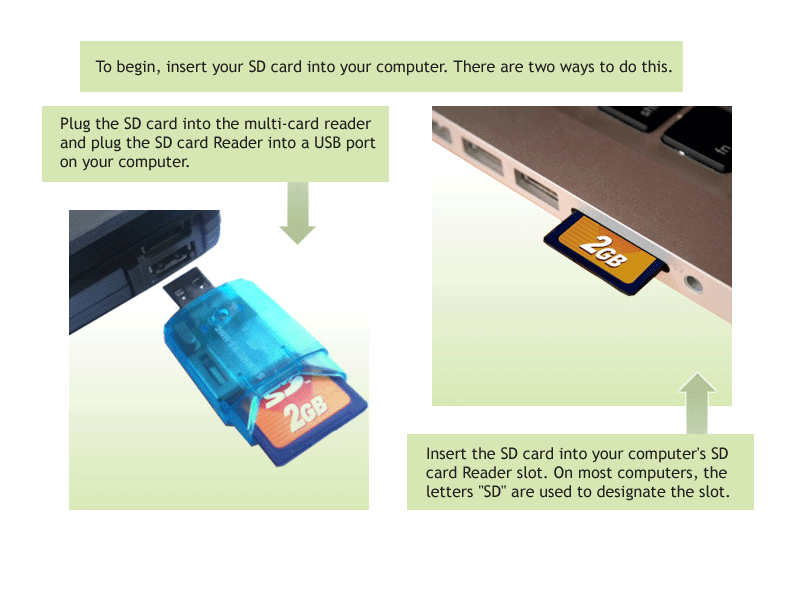
Inserting the USB SD Card Reader or SD Card into the Computer
- A popup should appear on your computer stating that the SD card is detected.

SD Card AutoPlay Window
- Start PC Downloader on your computer. Click the search bar on the screen (1), type “PC Downloader” (2), and choose “ASellerTool PC Downloader” (3) from the list.

- After PC Downloader is running; please follow the steps below: Step 1, select PDA in the Device section. Select Download to SD Card in the PDA section, In Step 2, select the files you wish to download. Checkmark Books and Other Media and Non-Media. If you also scout for pre-ISBN books, then set Title Search. Step 3, click Start to initiate the download.


PC Downloader Screen, With Instructions For SD Card Download
- When the download finishes, you will receive a popup message stating the download is complete.

PC Downloader After Completing a Download
- Insert the SD card back into the PDA by pushing it down to the SD slot.
- Soft reset the PDA by pressing the stylus into the reset hole on the back of the device above the battery cover. Alternatively, you can open the ASellerTool program, then tap Menu > Soft Reset.
- When the program runs again, you can scan several everyday items to ensure the price is correct.
It is crucial to soft reset the PDA and tests the data after a download so our program can read the new database correctly. If it gives you a weird error, you need to reboot your computer (1) and download the database again to another SD card (2). We also recommend alternating the cards you use to download and carry multiple SD cards when out scouting (see Setting Up Your SD Card).
Feedback

Post your comment on this topic.